Section 01
What is TangoQ?
A milonga is not a shuffle. It's an ordered evening of tandas: sets of three or four tracks by one orchestra, separated by cortinas, short non-tango breaks that clear the floor between tandas. Nothing is random, nothing gets deleted mid-set, and the music stops at the end rather than looping into the night.
Stock Auto DJ was built for the opposite: a self-refilling, shuffleable radio queue. TangoQ reshapes it into a cursor queue that plays your tracks in order, keeps the ones already played on screen, and stops when it reaches the end.
But the deeper idea is about how a tango DJ works. The best DJs don't arrange the whole night at home and press play. They read the room, the energy, who's dancing, the hour, and build the set as it happens. You can pre-load an entire evening in TangoQ if you want to. Far more often you'll bring a couple of opening tandas and grow the rest live.
Preparation is optional and light. Sketch a starter tanda or two in your head on the drive over, decide ten minutes before you go on, or don't decide at all and build the whole set from the floor. TangoQ never asks you to commit the shape of the night up front, everything in this guide exists to make adding the next tanda mid-milonga fast, safe, and legible.
Underneath, it's still Mixxx. Your library, analysis, controllers, decks, effects and shortcuts all work exactly as you know them. TangoQ adds a tango cockpit on top; it doesn't take Mixxx away.
Throughout this guide, "stock Mixxx" means the original, unmodified Mixxx that TangoQ is built from: the app exactly as the Mixxx project ships it, with none of the tango features added. TangoQ is that same program with a tango cockpit layered on top.
Section 02
Why TangoQ Exists
No mainstream DJ program was ever designed for tango from the ground up. Tango DJs have simply learned to work around software built for other kinds of nights, and to accept its gaps as part of the job.
A milonga has needs that a club set doesn't: tandas grouped by orchestra, cortinas between them, clean gaps, trimmed silence, and a set that ends on time instead of playing forever. General-purpose DJ tools don't think in those terms, so tango DJs improvise around them.
iTunes / Apple Music
No concept of a cortina or a tanda, and no crossfader at all. You overlap tracks by nudging the volume keys, which is awkward in the middle of a live set.
Djay Pro
Capable, but now a subscription, and still with no native cortina handling or tango-minded gap and silence trimming.
VirtualDJ · Serato · Traktor
Powerful club software you pay for upfront, with no promise it won't move to a subscription later the way Djay Pro did, and a mountain of club features a tango DJ never touches.
Streaming (Spotify, etc.)
Tracks drift in and out of the catalogue without warning, so a tanda you counted on can quietly disappear. TangoQ works only with your own offline library, which never changes under you.
Dedicated tango apps
Purpose-built tools such as tangoDJ.app do target tango and are genuinely useful, but they are paid and closed-source, without the long, open track record of a large project.
Stock Mixxx
Free, open, and trusted since 2001, yet on its own it still lacked the tango-specific features a milonga needs.
So DJs get stuck: pick a tool and accept its flaws as part of the workflow. Volume-key crossfades. A monthly bill. No real cortinas. Silence to trim by ear on every track, every night. And with most of these apps you are paying for a wall of club features that a tango DJ will never use.
TangoQ exists to close that gap. Rather than start from scratch, it builds on Mixxx, an open-source DJ program refined and trusted since 2001, and adds exactly what a tango DJ needs on top: the cursor queue, cortinas with real fades, tanda transitions, audible-span timing, and a set that ends when the milonga does. It runs entirely from your own offline music library, so nothing depends on a streaming catalogue or an internet connection.
That TangoQ meets the key requirements of a working tango DJ by standing on the proven success of Mixxx, and that it does so while staying free and open source for everyone, with no subscription and nothing locked away.
Section 03
What TangoQ Adds
Every feature below is a job a tango DJ used to do by hand, or a gap they learned to work around. TangoQ folds each one into the app so the milonga, not the software, is what you're paying attention to.
This is the short map. Each item has its own full walkthrough later in the guide; here it's just what you get and why it's here.
The cursor queue
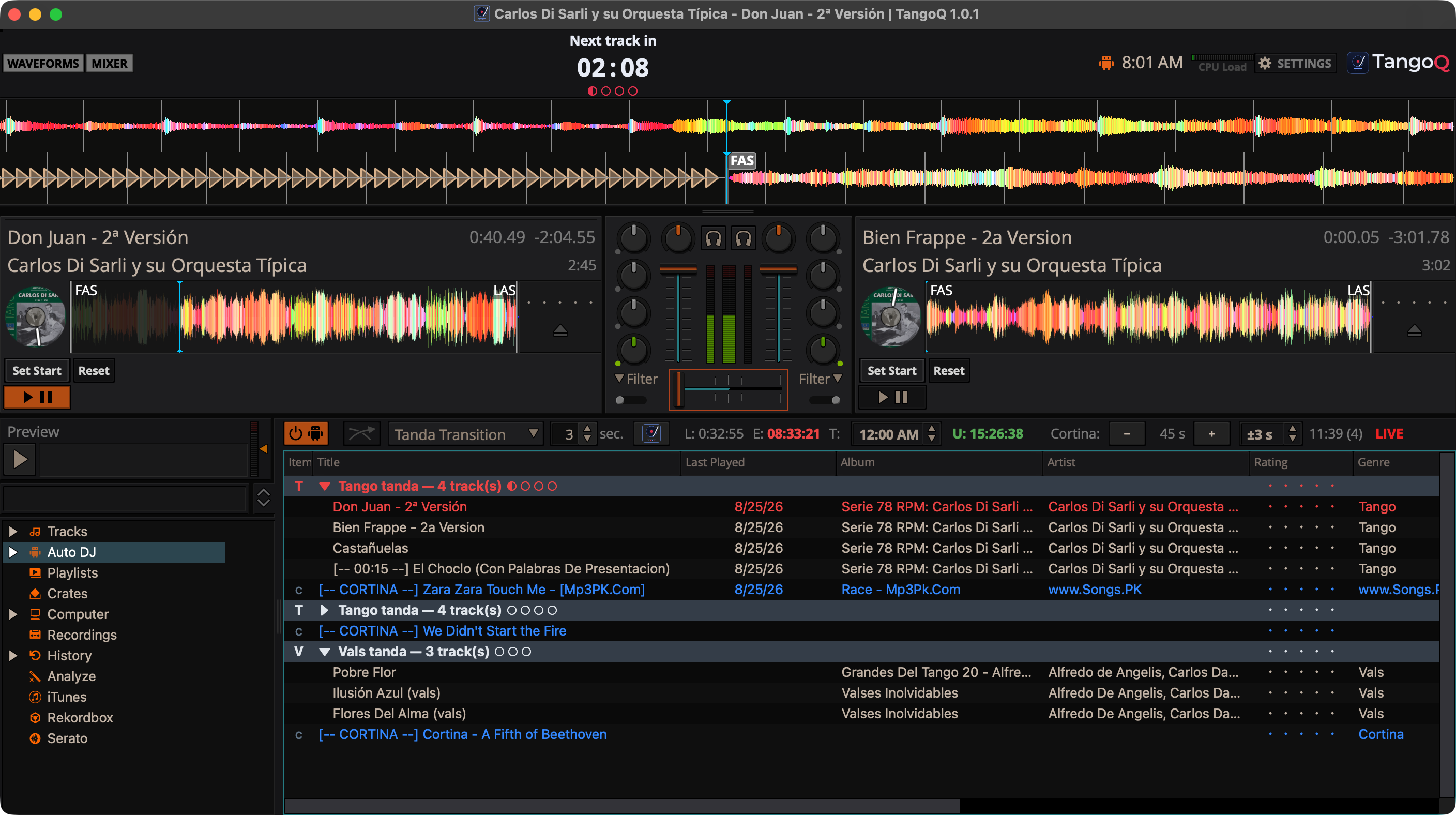
Auto DJ plays your tracks in order, keeps the ones already played on screen, and stops at the end, instead of shuffling and refilling like a radio station. The set is yours, start to finish (Section 06).
Real cortinas & fades
Tag any track as a cortina and TangoQ marks it, fades or hard-cuts it, and counts it into the set length, no more faking a break by hand between tandas (Section 10).
Tandas
Group three or four tracks by one orchestra into a tanda; the HUD shows how far through it you are at a glance, so you always know how many tracks are left before the cortina (Section 08).
Audible-span timing
TangoQ times each track by its audible span, ignoring dead air and long intros, so the "when does the milonga end" projection is honest instead of padded by silence (Section 09).
Performance tracks
A visiting couple is dancing a show. They hand you a track, or ask for one already in your library. Mark it a performance track: TangoQ queues it on its own, names it on screen, and pauses after it, so you can wait out the applause and the announcement instead of racing the next tanda in.
Announcement pauses
The organiser leans over: "stop after this tanda, I need to tell everyone about the weekend workshops." Drop a pause-after mark on the last track. TangoQ halts there on its own, no dead-air file, no hovering over the stop button, no remembering.
A set that ends on time
Set your target end time and TangoQ tells you at a glance whether you're running over or under, and a red line in the queue shows exactly where the night stops (Section 11).
Guard the floor (LIVE mode)
A bumped keyboard shouldn't stop the music mid-tanda. Arm LIVE mode and the safeguards close in: stopping Auto DJ takes a deliberate two-step confirm, the deck play/pause keys go quiet, and controls you'd never touch mid-set are disabled for the night (Section 13).
The queue, always in view
Float the Auto DJ queue into its own docked, themed panel that stays put while you dig for the next tanda - colour-coded by now-playing, played and cortina (Section 14).
A skin stripped to the milonga
TangoQ ships its own skin with the club-DJ machinery a tanda set never touches taken out of the way - spare decks, sampler banks, effect racks, unused toolbar controls and menu clutter - leaving a clean workspace built around the queue, the cortinas and the timing.
The Tango HUD
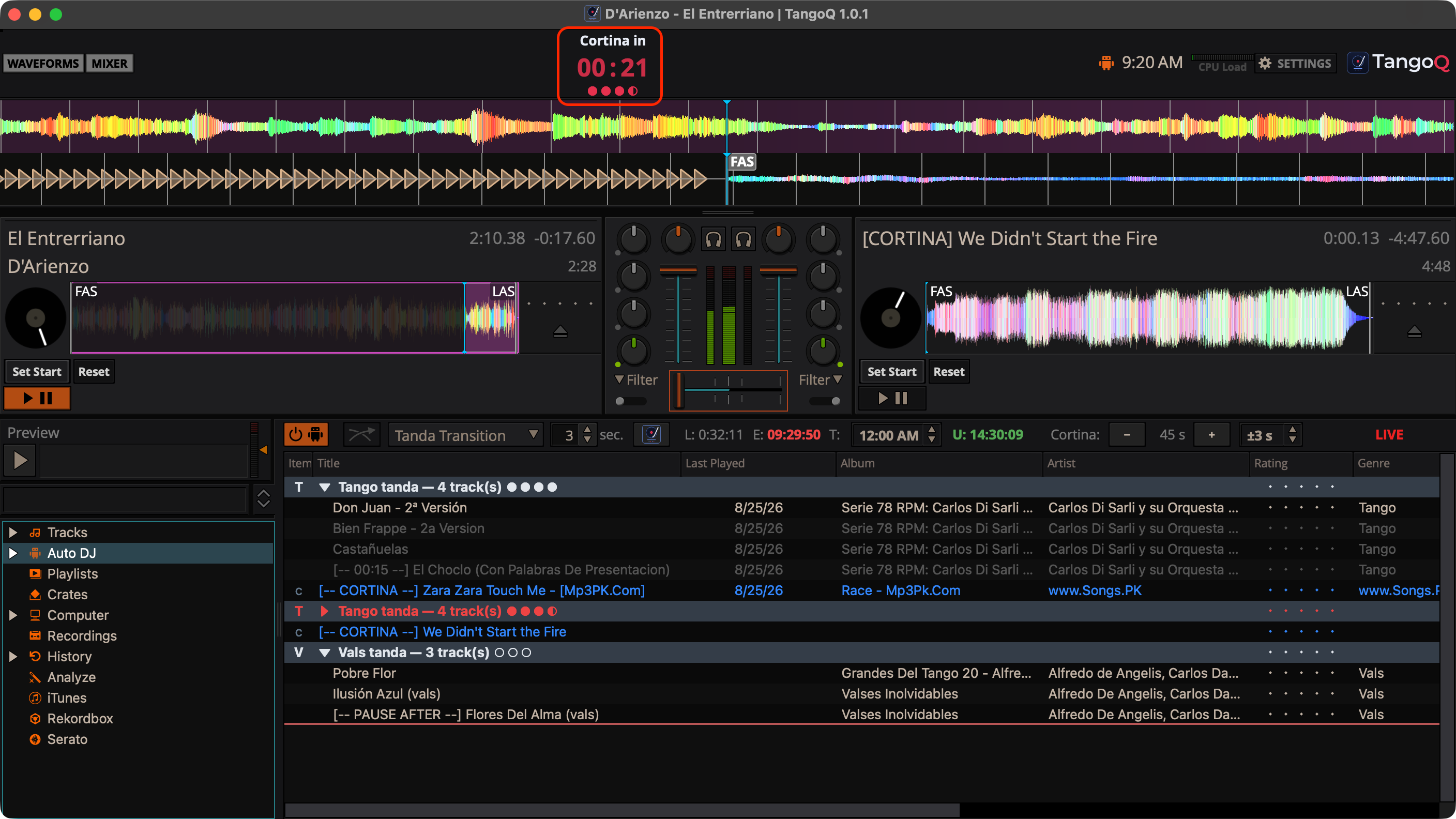
A heads-up display in the toolbar: a big countdown to the next transition, tanda-progress pips so you can see how far through the tanda you are at a glance, and a final-30-second breathe so a cortina never catches you out (Section 12).
The Item Type column
A slim column marks every tanda T, V or M - Tango, Vals or Milonga - so one glance down the queue shows exactly where you stand in the T·T·V·T·T·M flow, with cortinas and performance tracks flagged in the same column.
Performance tracks and announcement pauses share one small mechanism, a session display name and a pause-after mark on a track, and the hands-on details of setting them live in Growing the Set on the Fly (Section 08). What matters here is that both are things you used to hold in your head and do manually under pressure; now the app holds them for you.
Section 04
Installing TangoQ
Download the installer for your platform, then install it like any app. TangoQ is currently distributed unsigned, so each system has a one-time "let it run" step.
Windows
Run the .msi installer and follow the prompts. If Windows SmartScreen warns that the publisher is unrecognized, choose More info → Run anyway. TangoQ installs alongside, and completely separate from, any existing Mixxx.
macOS
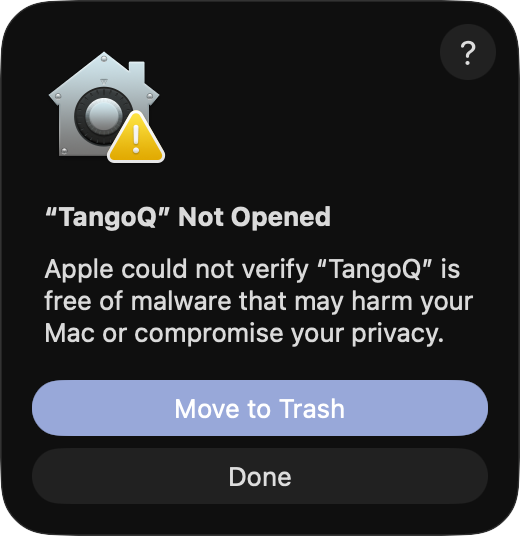
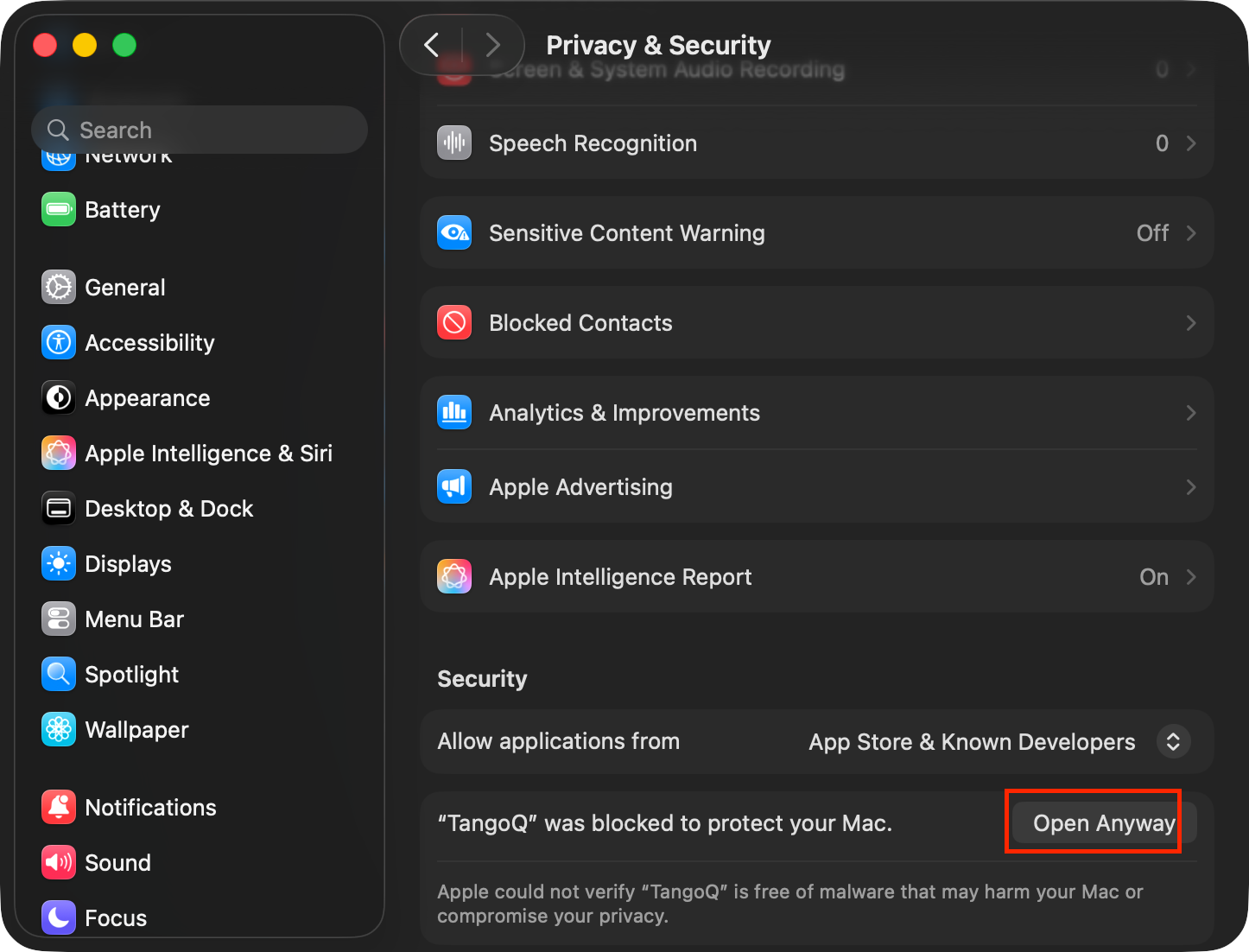
Open the .dmg and drag TangoQ onto the Applications folder. Because the app is unsigned, Gatekeeper will refuse a normal double-click the first time.
- macOS Sequoia (15) and newer: double-click once and let it be blocked, then go to System Settings → Privacy & Security, scroll to the message about TangoQ, and click Open Anyway.
- macOS Sonoma (14) and earlier: right-click (or Control-click) the app in Applications and choose Open, then confirm Open in the dialog.
You only clear Gatekeeper once. After the first successful launch, TangoQ opens normally from then on.
Section 05
First Launch & Your Library
The very first time TangoQ starts, it builds its own library database, kept entirely separate from Mixxx. How it fills that database depends on whether you already use Mixxx.
Coming from Mixxx
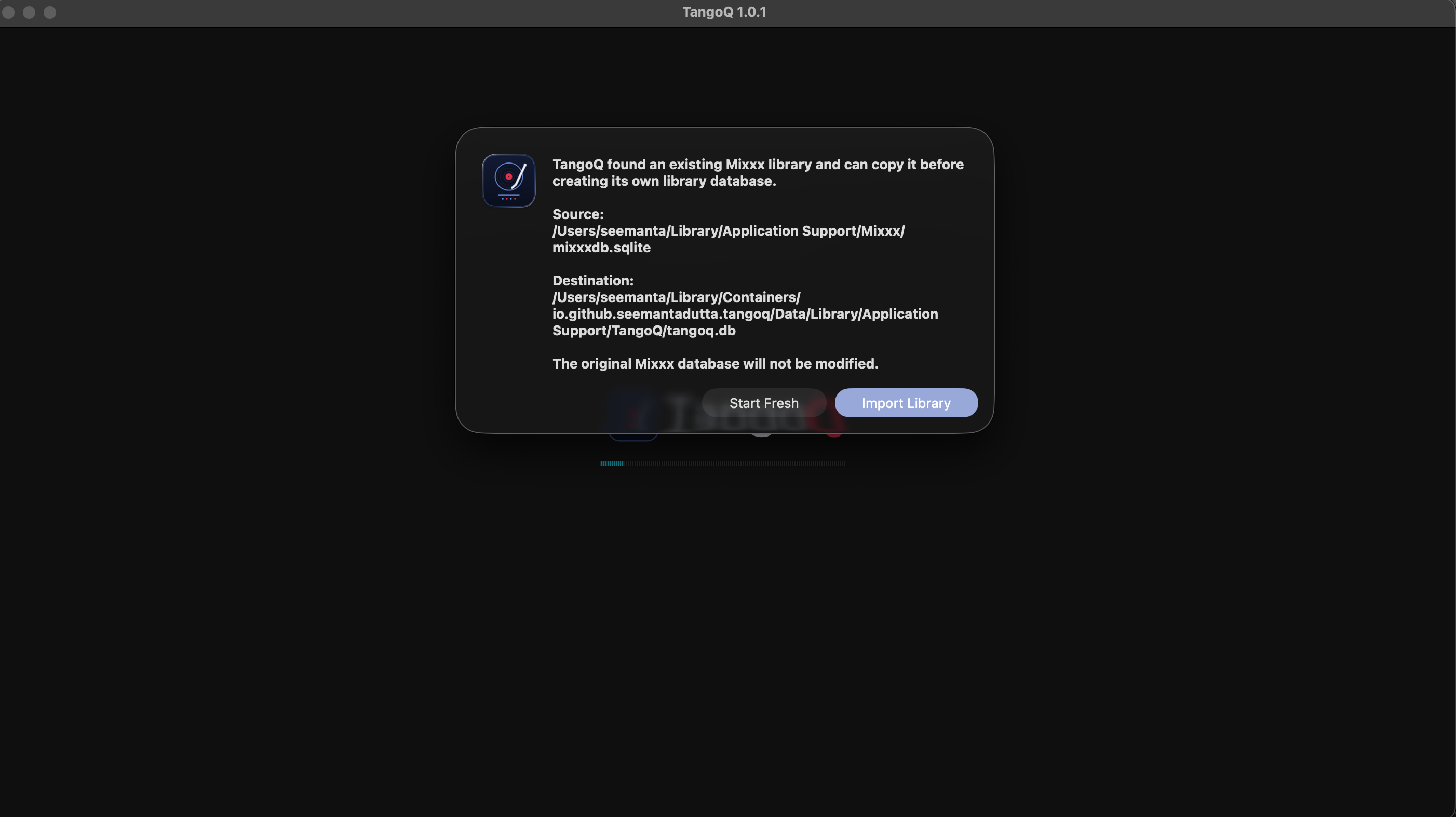
If TangoQ finds an existing Mixxx library on your machine, it offers to bring it across with a dialog titled "Import your Mixxx library?":
- Import Library: copies your existing Mixxx database into TangoQ. Your tracks, playlists, cue points and, importantly, all the analysis Mixxx already did come with it. This is a fast file copy (seconds), not a re-scan.
- Start Fresh: skips the copy and begins with an empty TangoQ library.
Either way, your original Mixxx database is never modified. The two apps keep their own separate libraries and settings, so you can run both without them interfering.
New to Mixxx
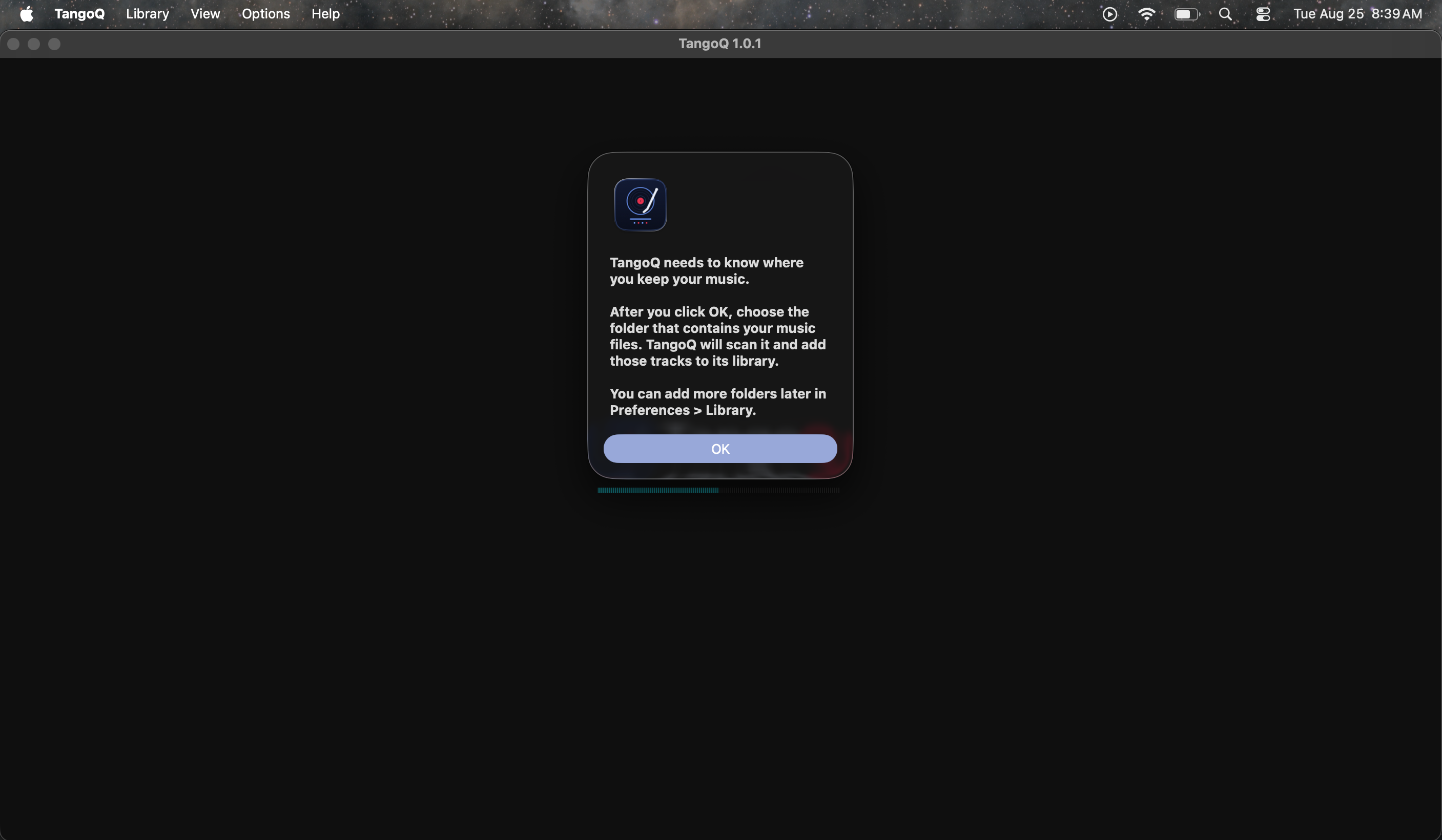
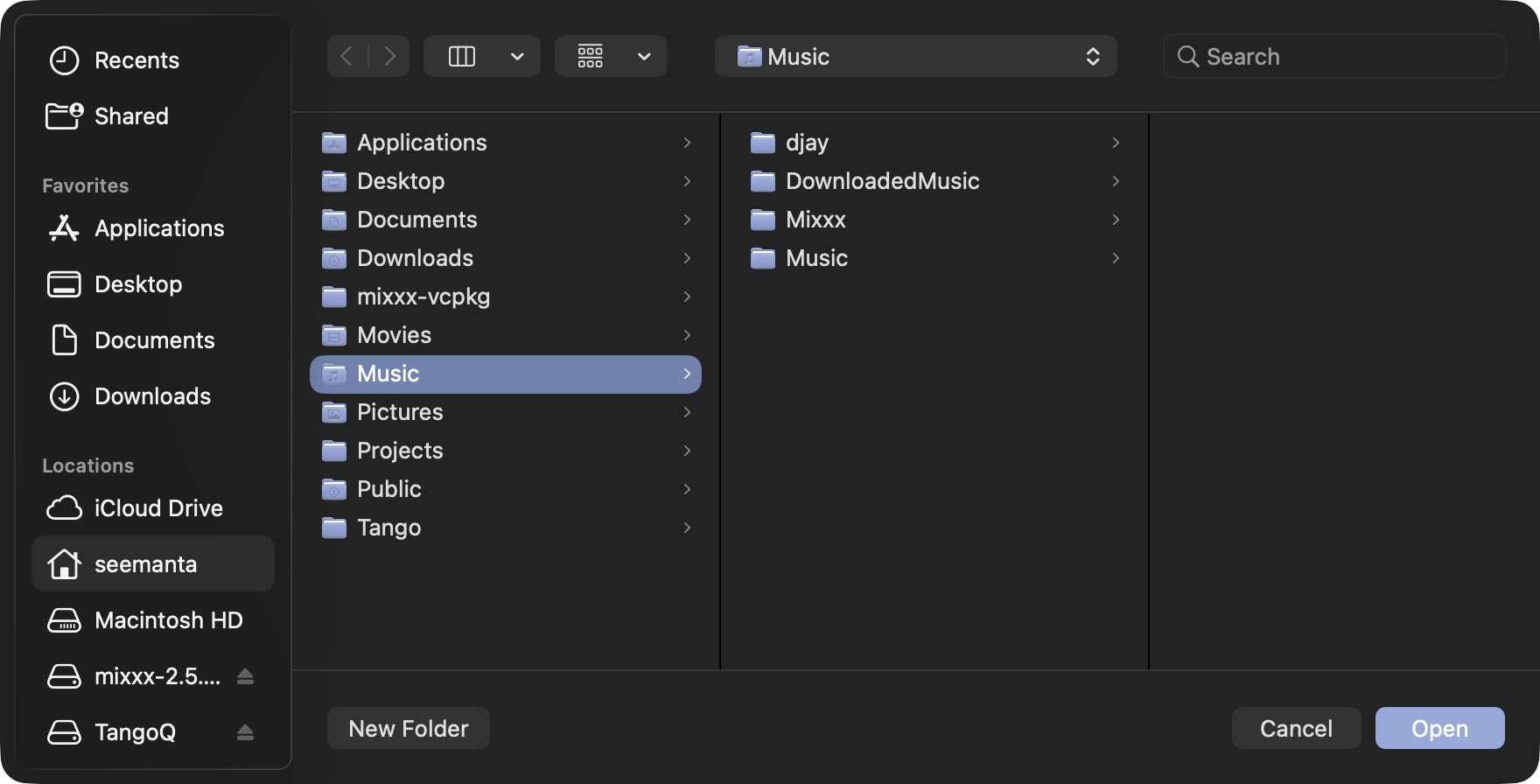
With no existing Mixxx library to import, you'll point TangoQ at your music. Open Preferences → Library, add your music folder(s), and TangoQ imports and analyzes every track.
A large collection of tens of gigabytes can take a few minutes to scan and analyze the first time. This is a one-time step: after the initial import, launches are quick and the analysis is reused. Importing from Mixxx skips this wait entirely, because the analysis is already done.
Existing Mixxx user
"Import your Mixxx library?" → Import Library. Fast copy, keeps analysis & playlists, Mixxx untouched.
Brand-new user
Add your music folder in Preferences → Library. First scan of a big library takes a few minutes, once.
Section 06
Core Concepts
Three ideas explain most of TangoQ's behaviour. Read them once and the rest of the guide falls into place.
The cursor queue
The Auto DJ queue is a cursor, not a playlist that empties. Tracks play in order, played tracks stay on the list, and Auto DJ stops after the last track instead of removing songs or looping. A marker follows the next track to play.
Because you'll be editing the queue all night, the cursor re-anchors itself to the playing (or last-played) track by identity every time the list rebuilds. So adding, removing, or reordering tracks, running or stopped, never loses your place, and the idle deck reloads automatically when an edit changes what plays next.
Add as you go, safely
Everything is built around dropping the next tanda in while the current one plays. Actions that would derail a live set, Shuffle, Add Random, Repeat, Skip, Fade Now, and column sorting, are locked, and the "Add to Auto DJ (top / replace)" shortcuts are disabled across every entry point (track menu, double-click, controllers, sidebars) so nothing can silently reorder or wipe your set.
LIVE mode vs. home testing
A real performance is different from trying things at home, so TangoQ has an explicit LIVE mode (Section 13). When you're LIVE, accidental-stop guards arm and stray keystrokes are suppressed. At home you leave LIVE off and everything behaves normally. Some conveniences are deliberately hidden during LIVE, that's by design, not a bug.
Section 07
Quick Start: Your First Milonga
If you read one section before your first gig, read this. It's the whole loop end to end.
- Queue a starter tanda (and its cortina).
Drag three or four tracks by one orchestra into the Auto DJ queue, then add a cortina after them (Section 08). One or two tandas is plenty to open with.
- Set your target end time.
In the cockpit, set T: to when the milonga should end. The over/under readout will tell you if you're ahead or behind (Section 11).
- Start Auto DJ.
Playback begins with your first track; the HUD shows a countdown to the next transition (Section 12).
- Enter LIVE mode.
Click the LIVE indicator to arm the performance safeguards before the floor fills (Section 13).
- Grow the set from the floor.
While the current tanda plays, read the room and add the next tanda and cortina below. The cursor keeps your place; the timing cockpit keeps you honest against the clock.
Section 08
Growing the Set on the Fly
This is where TangoQ earns its keep. You prepared light; now you build the evening tanda by tanda, reacting to the room.
Adding tracks
Add tracks to the Auto DJ queue the usual Mixxx ways, drag from the library, or the right-click Add to Auto DJ Queue items. New tracks land below and wait their turn; the track playing now and the ones already played hold their place.
Grouping into tandas
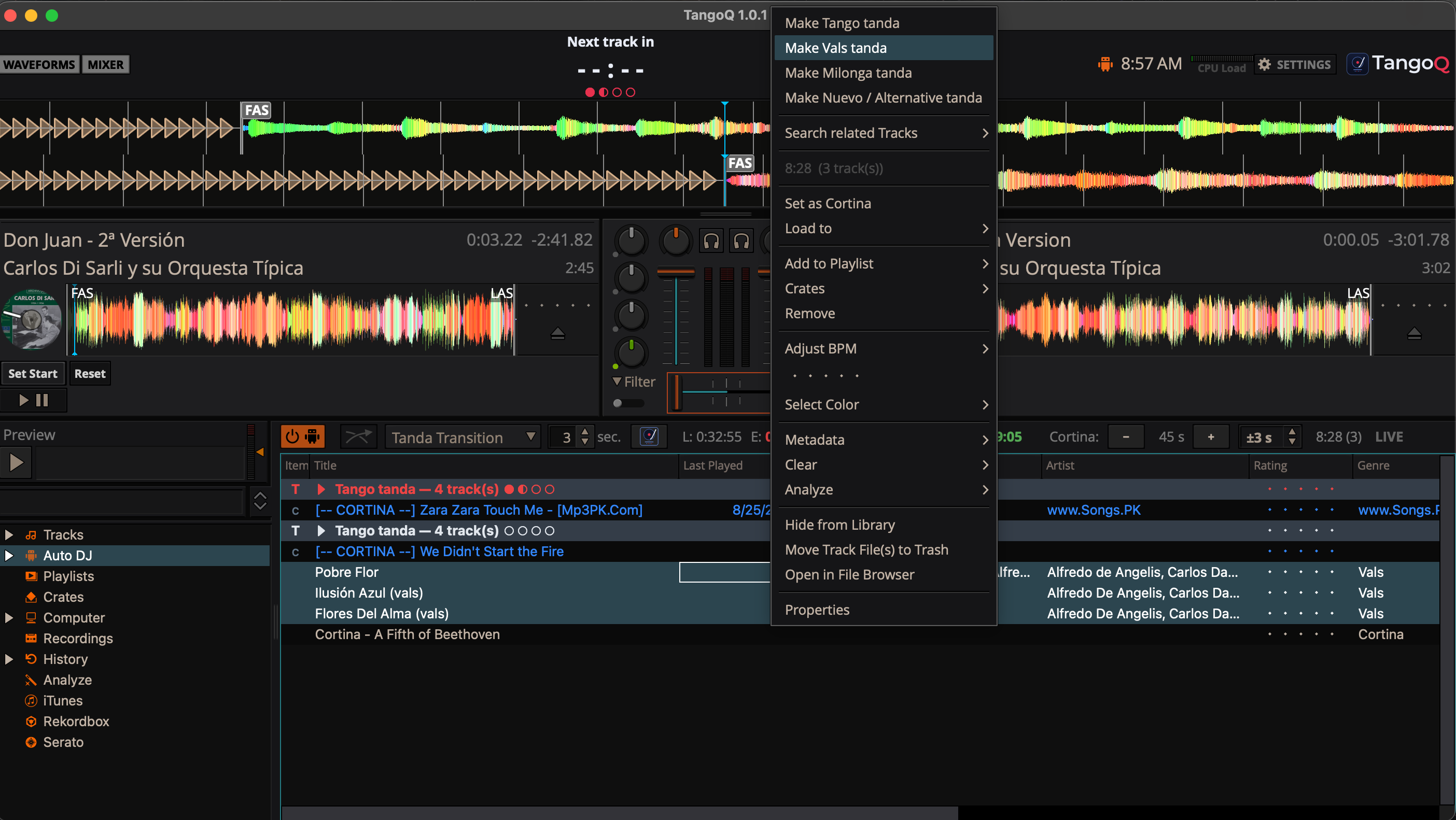
Select the tracks of a tanda and use Make Tango tanda, Make Vals tanda, or Make Milonga tanda to group them. Grouping drives the tanda progress pips in the HUD so you can see how far through the current tanda you are at a glance.
Cortinas
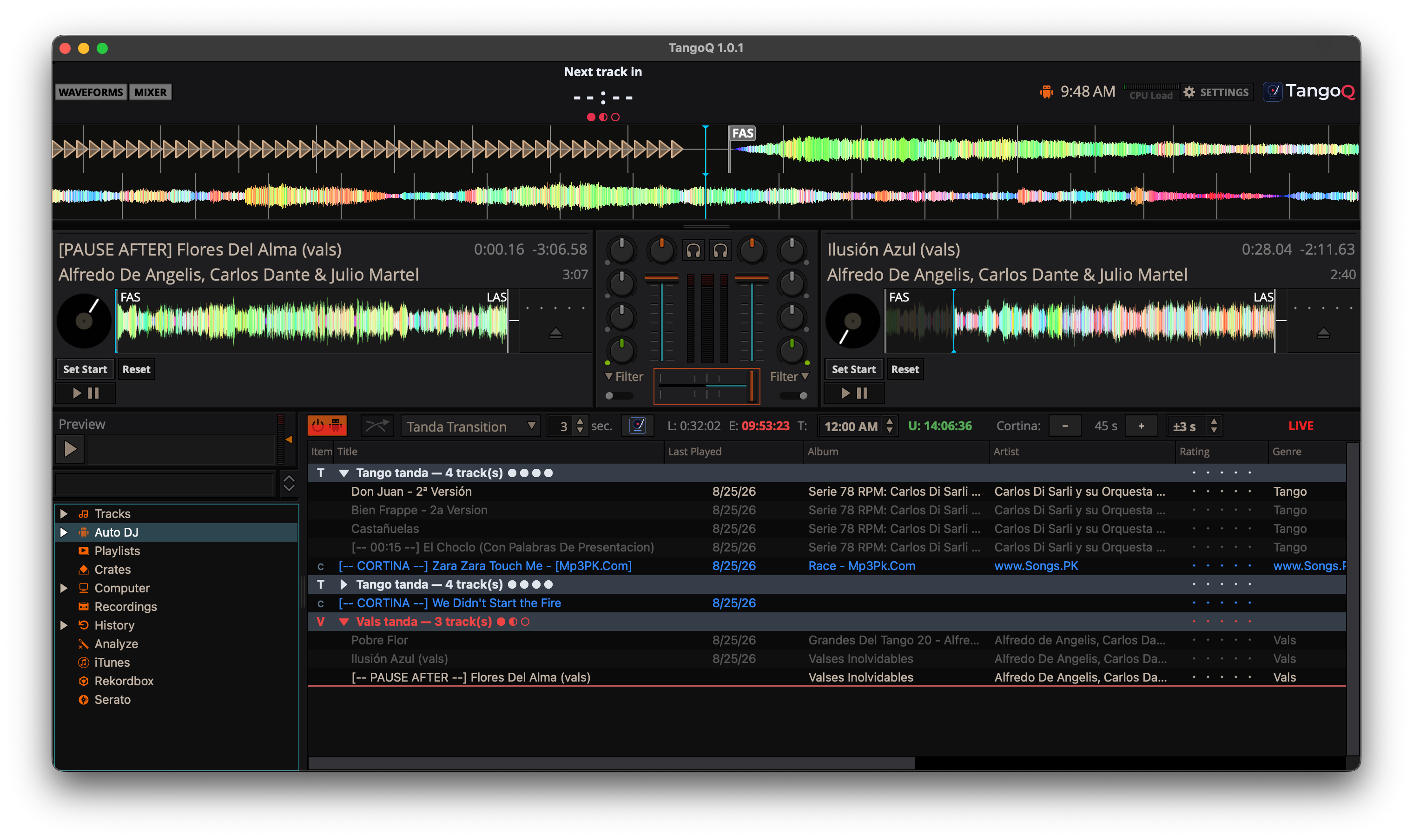
Tag a track already in the queue as a cortina with Set as Cortina (from the library, the same action is Add to Auto DJ Queue as Cortina). A tagged cortina gets a blue [-- CORTINA --] prefix in the list and feeds the set-length and end-time projection using your preferred cortina length. Cortinas are exempt from duplicate detection, you're meant to reuse the same one across the night.
Performances, pauses & where the set ends
Any track can carry a session display name and a pause-after mark, which together cover announcements, performance tracks and intro/outro blocks, a performance is a track you rename and mark; an intro block is one you put a mark after. A red separator line in the list shows exactly where the set will stop.
Cortina tags and session display names live for the current session only and reset when you relaunch TangoQ. They intentionally don't touch your track metadata.
![The TangoQ Auto DJ queue: grouped tandas with T/V type badges, blue [-- CORTINA --] rows between them, and the now-playing track in red.](assets/06-queue-cortina.png)
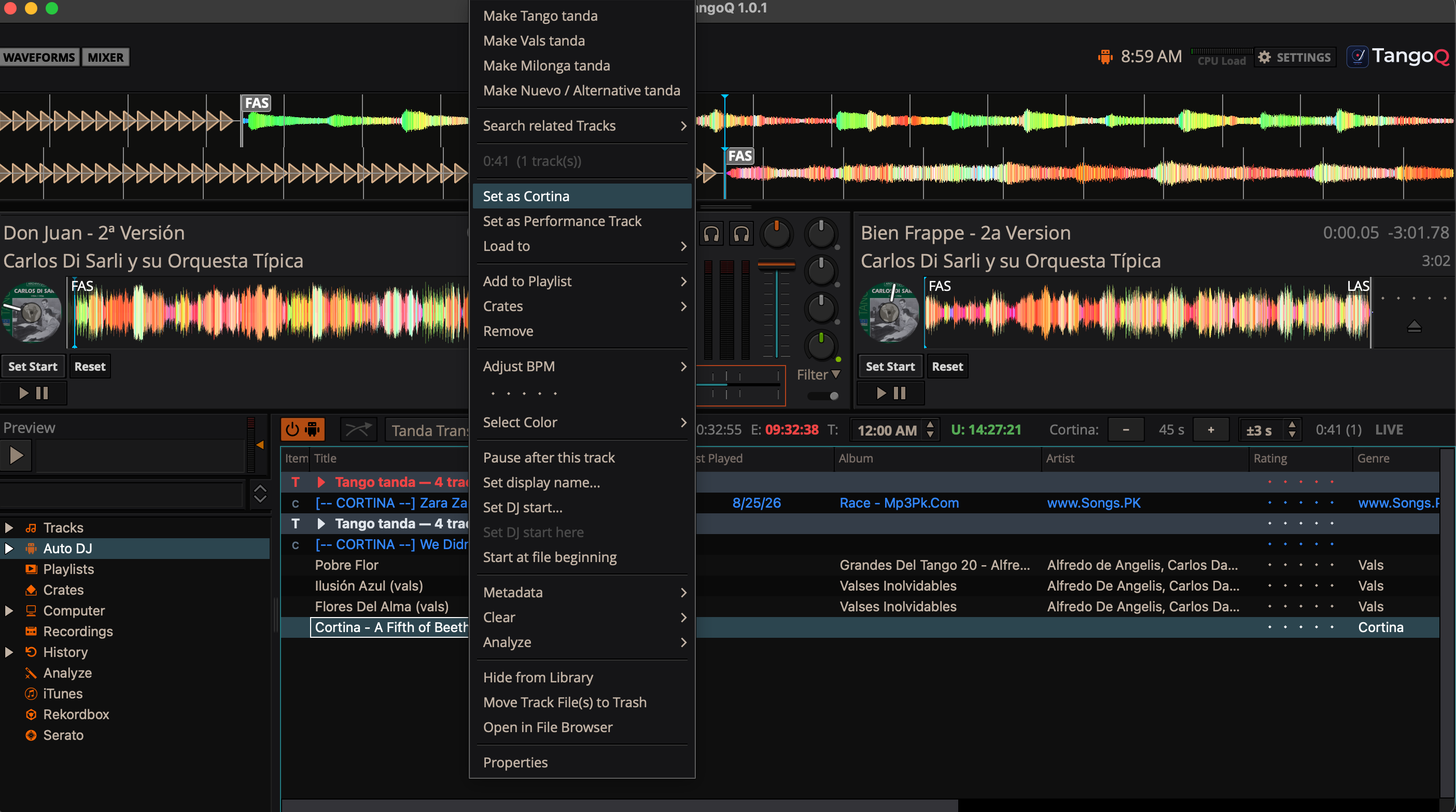
![The Auto DJ queue with a track marked [-- PAUSE AFTER --] and a red separator line beneath it, where the set stops for an announcement.](assets/08-tanda-separator.png)
Section 09
Start Points: FAS, LAS & Set Start
Tango recordings are full of dead air, long intros and trailing silence. TangoQ works from each track's audible span, and lets you override where a track begins when you know better.
FAS and LAS
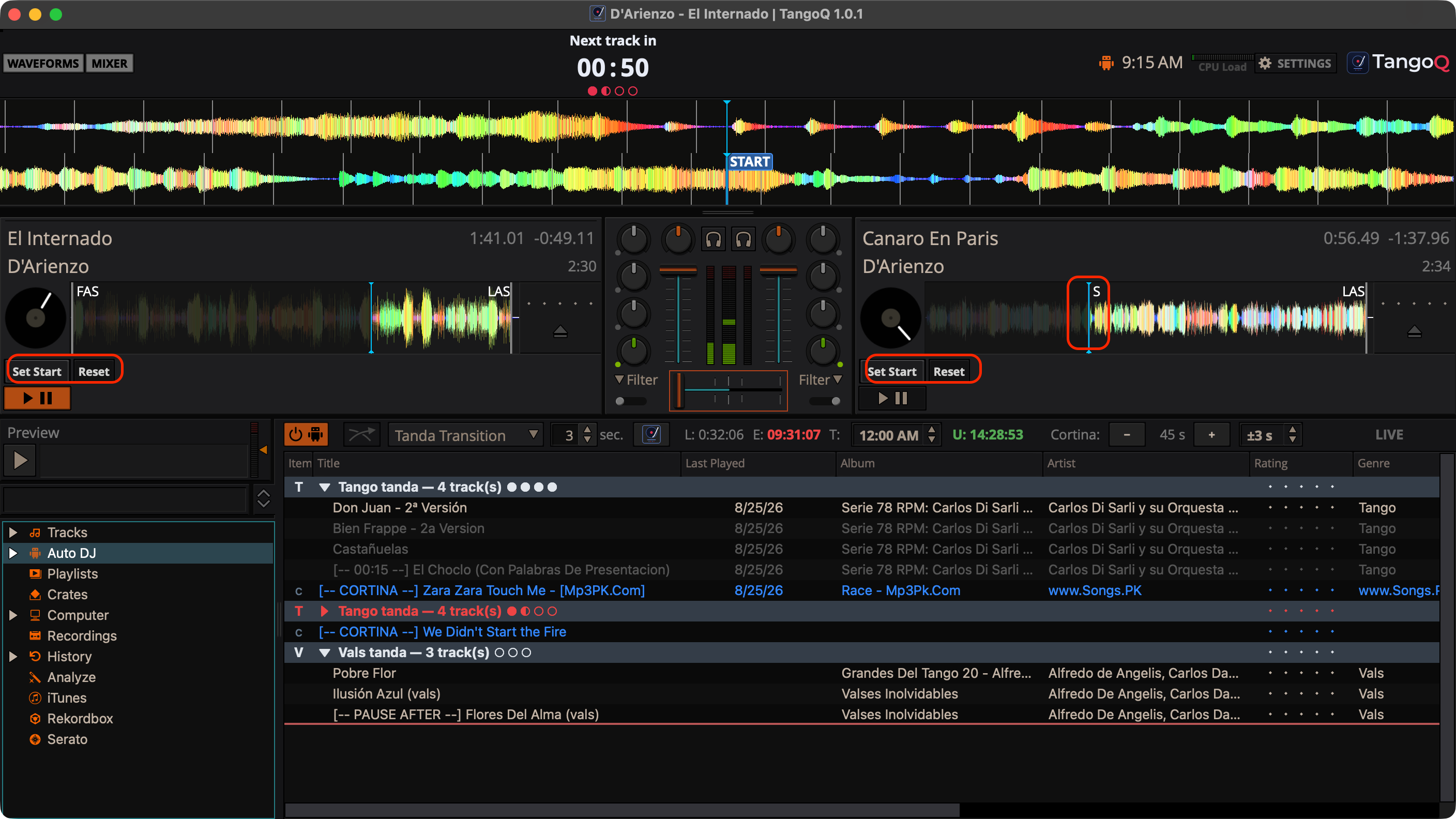
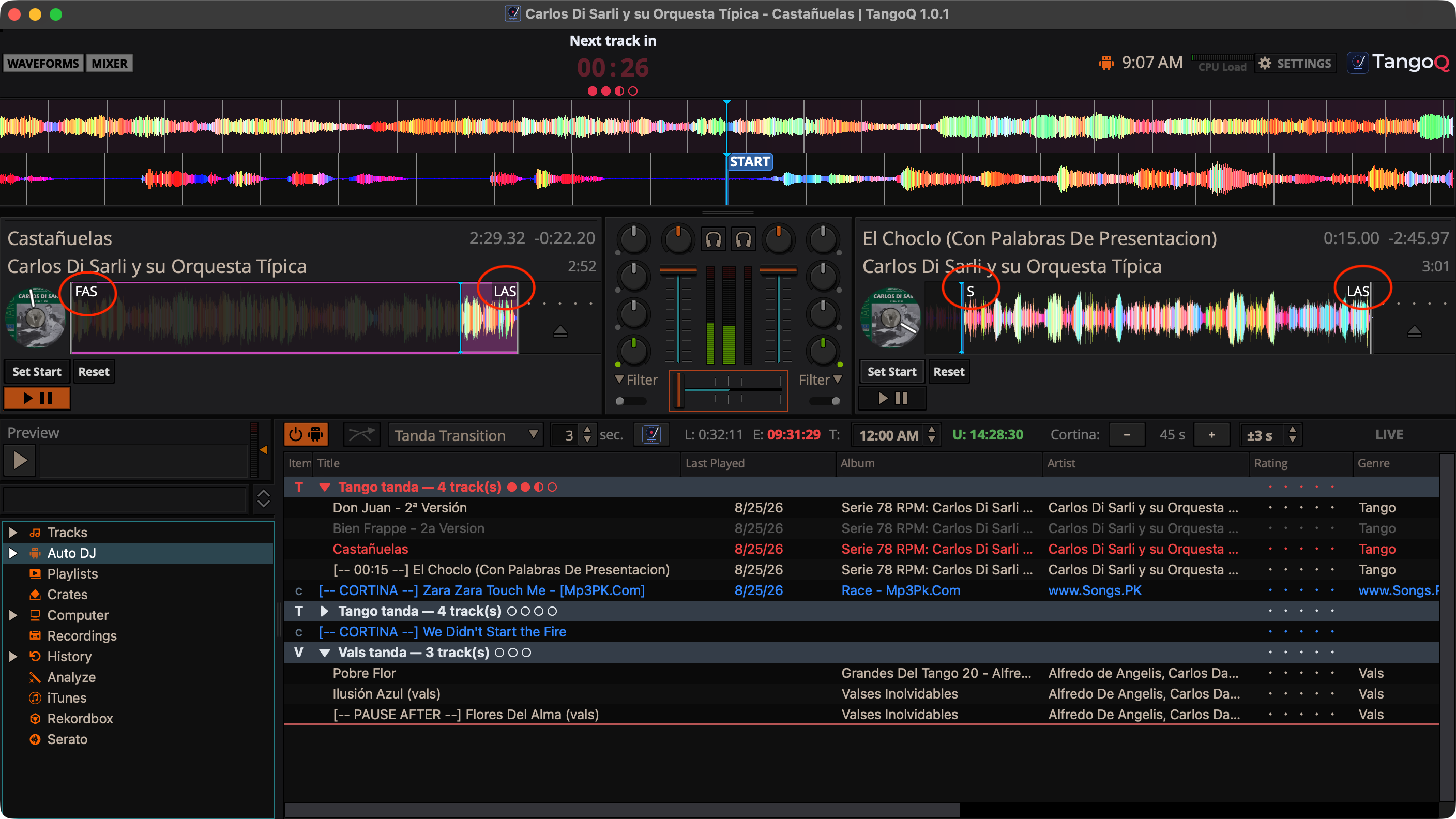
When Mixxx analyzes a track it finds the FAS (First Audible Sound) and LAS (Last Audible Sound), the points where the real music starts and ends. The span between them is what actually plays, so TangoQ counts audible time in its set estimates instead of the raw file length. Trimmed silence isn't over-counted against your end time.
Setting your own start with "Set Start"
Sometimes you want a track to open somewhere specific, skip a long piano intro, or drop the needle on the second phrase. Cue the deck to the spot and press Set Start: it drops a start marker at the playhead, shown on the waveform. Press Reset to clear it. Your marker overrides the analyzed FAS: you know the track better than the analyzer does.
The start point works for both kinds of track:
- Ordinary tracks: playback and the set-timing estimate both begin at your marker, so a tanda opens exactly where you chose.
- Cortinas: the fade-in envelope begins at your marker, and the silence before it is measured relative to your cue. A cortina with an 11-second lead-in fades in where the music is, not at the file's first sample.
Because timing is anchored to the audible or chosen start, the end-time projection in the cockpit reflects what the room will actually hear, not what a file's length claims.
Section 10
Cortinas & Transitions
The cortina is how you clear the floor and reset the mood between tandas. TangoQ gives it a length budget, a fade, and live control.
Cortina length & live nudge
Set a preferred cortina length in Preferences (Section 15); it feeds the set-length and end-time projection. Mid-set, nudge it live with the Cortina: − / + control in the cockpit, the only way to change it on the fly. The value label mirrors the current budget.
Fade or hard cut
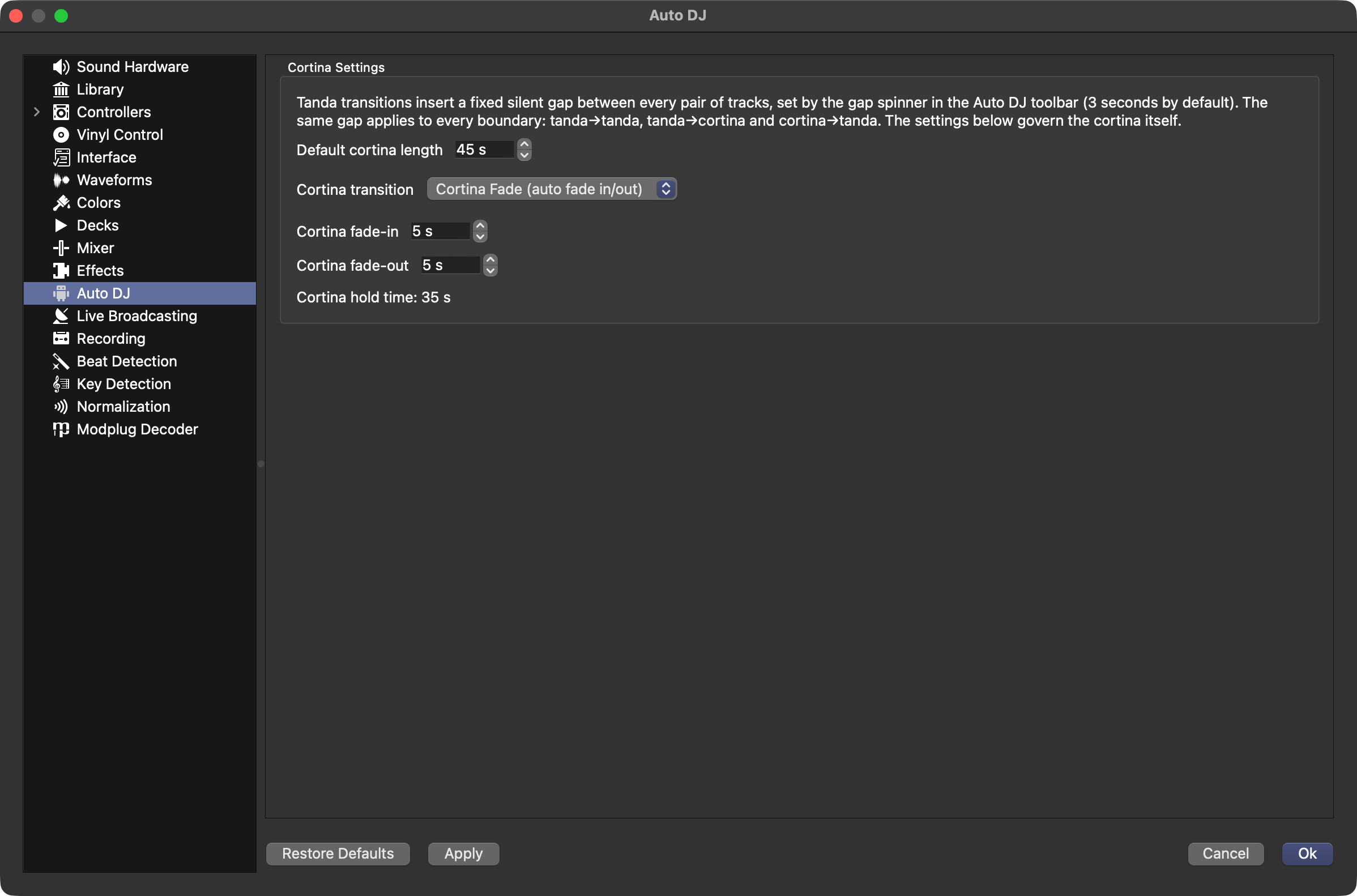
Cortinas can auto-fade or hard-cut. On a fresh install TangoQ defaults to a gentle fade: 5 seconds in, 5 seconds out, with a 3-second tanda gap, so a new DJ never gets a cortina slamming in at full volume. You can switch to a hard cut (and tune the fades) in Preferences.
Manually crossfading out of a cortina updates the end-time and time-remaining readouts, but doesn't change the projected set length.
With Cortina Fade off, the countdown to the next track shows --:--, because there is no fixed moment; you decide when to fade the cortina out. Once you arm the manual fade-out, the countdown appears (fade-out time plus the gap).
Tanda Transition mode
TangoQ uses a tango-appropriate Tanda Transition between tracks. Note that its seconds box means the opposite of stock Mixxx's crossfade: here it's the gap between tracks, not the overlap.
Section 11
The Cockpit: Set Timing
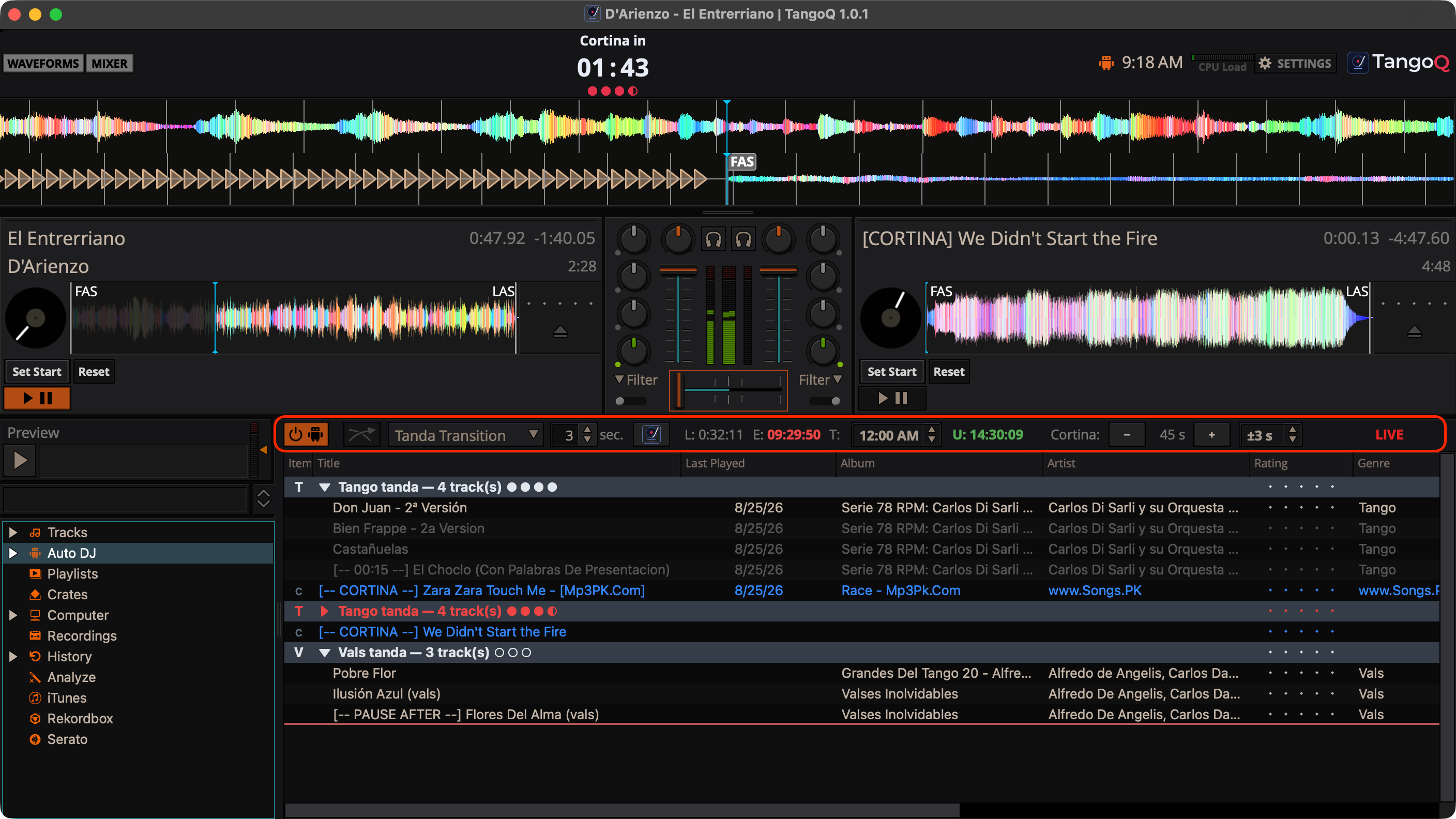
Across the Auto DJ toolbar is a compact row of readouts that keeps you oriented against the clock. Every label is a single letter to save space.
Set T: to your target end time and the U: / O: readout tells you at a glance whether you're running under or over. Timing accounts for the gap between tracks and uses each track's audible span (Section 09), so trimmed silence isn't counted. There's also a duration readout for the total time of the currently selected tracks.
Section 12
The Tango HUD
Centered in the toolbar is a heads-up display: a large countdown to the next event and a row of tanda progress pips.
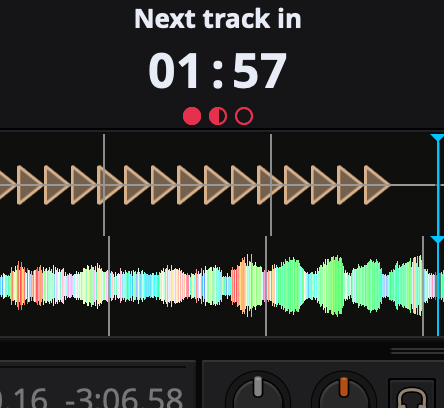
- The big countdown shows the time to the next track, cortina, or the end of the set.
- Progress pips show where you are within the current tanda.
- In the final 30 seconds the countdown "breathes", pulsing from faint to full red, then settles, a quiet cue to get ready.
- While Auto DJ is stopped the HUD shows nothing rather than sitting at --:--, but keeps its reserved space so the toolbar never jumps.
Section 13
Running a Milonga LIVE
LIVE mode is the difference between a test run and a 'Live DJ gig' in the presence of dancers. Turn it on when the floor is yours.
You enter and exit LIVE from the LIVE indicator in the Auto DJ view. When LIVE is off, the indicator sits greyed out; this is home-testing mode, without added protection.
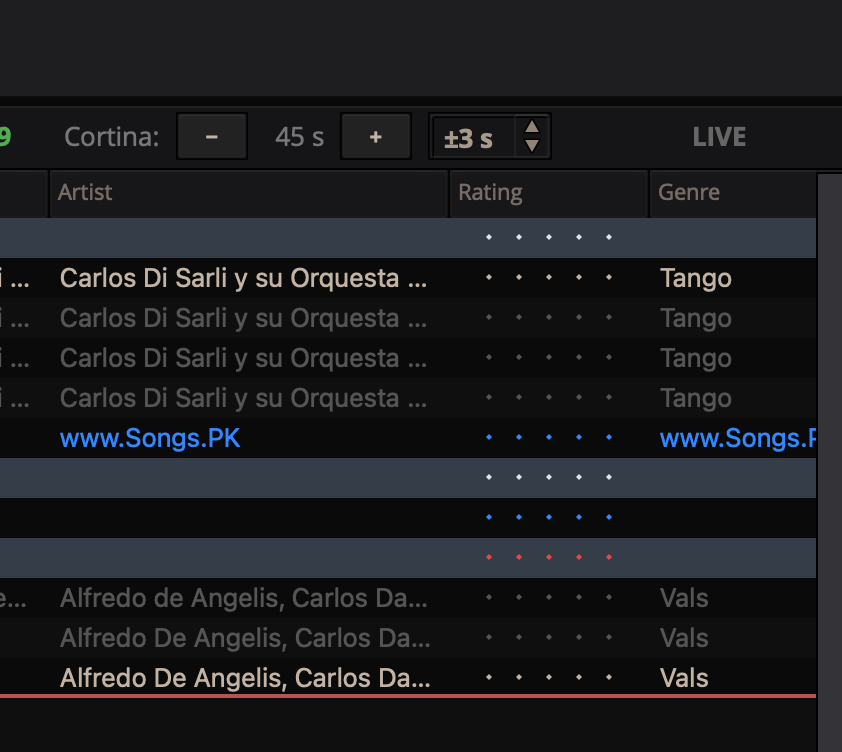
To go live, right-click it for an Enter / Exit LIVE mode.
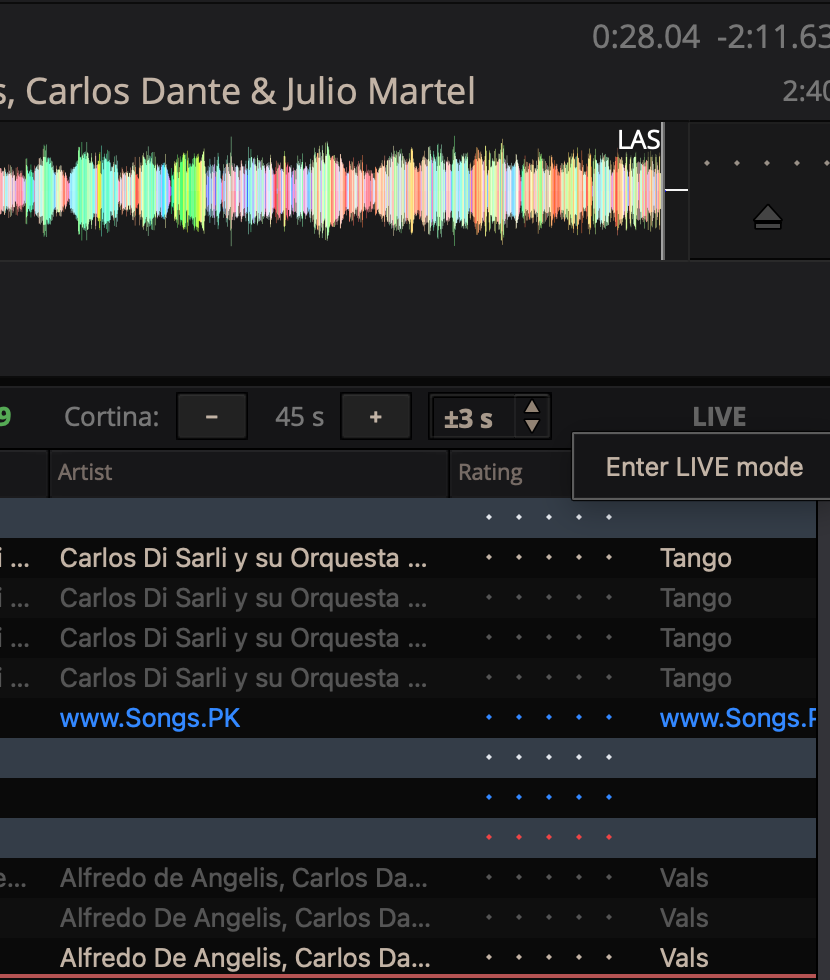
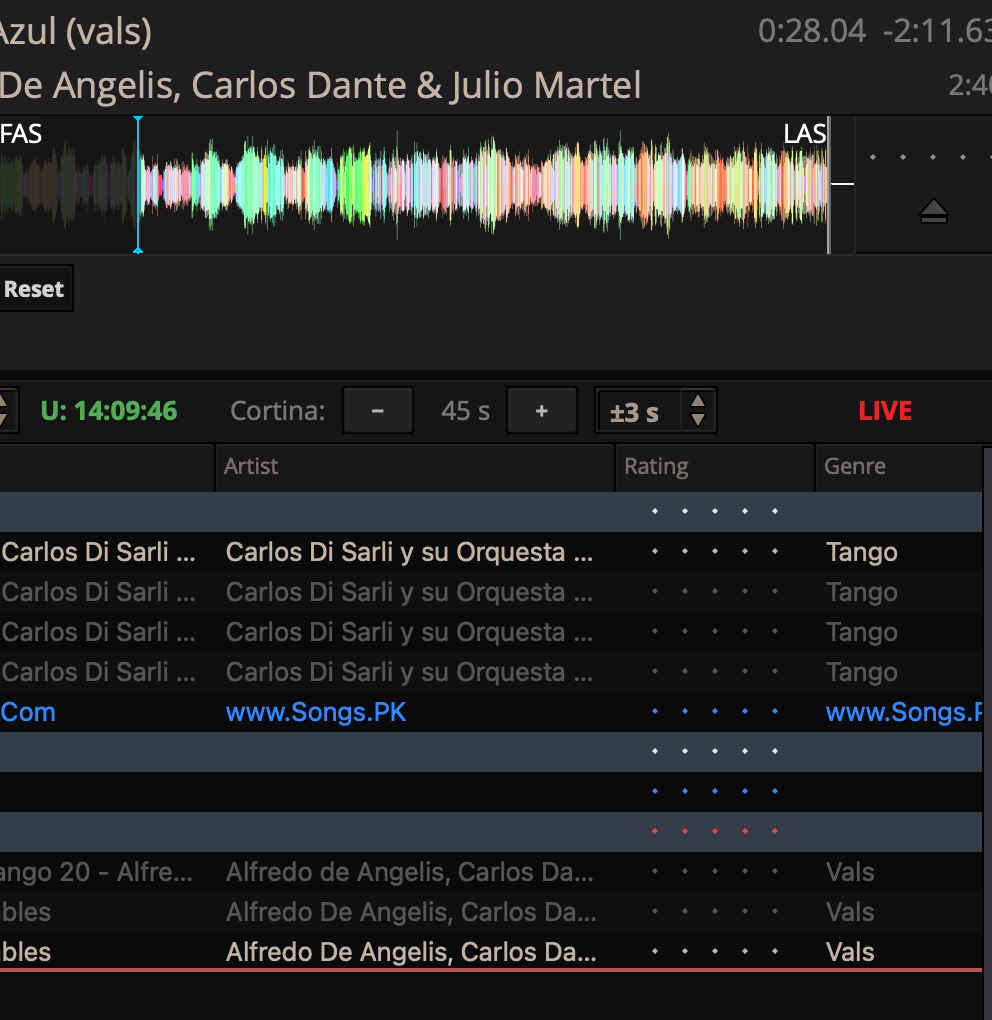
Once LIVE arms, the indicator glows red, the accidental-stop guard and keystroke suppression turn on, and the set is protected for the night.
The accidental-stop guard
While LIVE, stopping takes two deliberate actions. The first stop request only arms a short confirmation window: a red countdown drains over the Auto DJ button. A second stop request within that window actually stops. Let the window lapse and nothing happens, so a stray click can't kill the music.
While LIVE, the deck play/pause keys are suppressed so an accidental keypress can't stop the playing deck. Exit LIVE and normal control returns.
Now-playing highlight
The track playing now is shown in red in the Auto DJ list, so a glance tells you where you are in the set.
Section 14
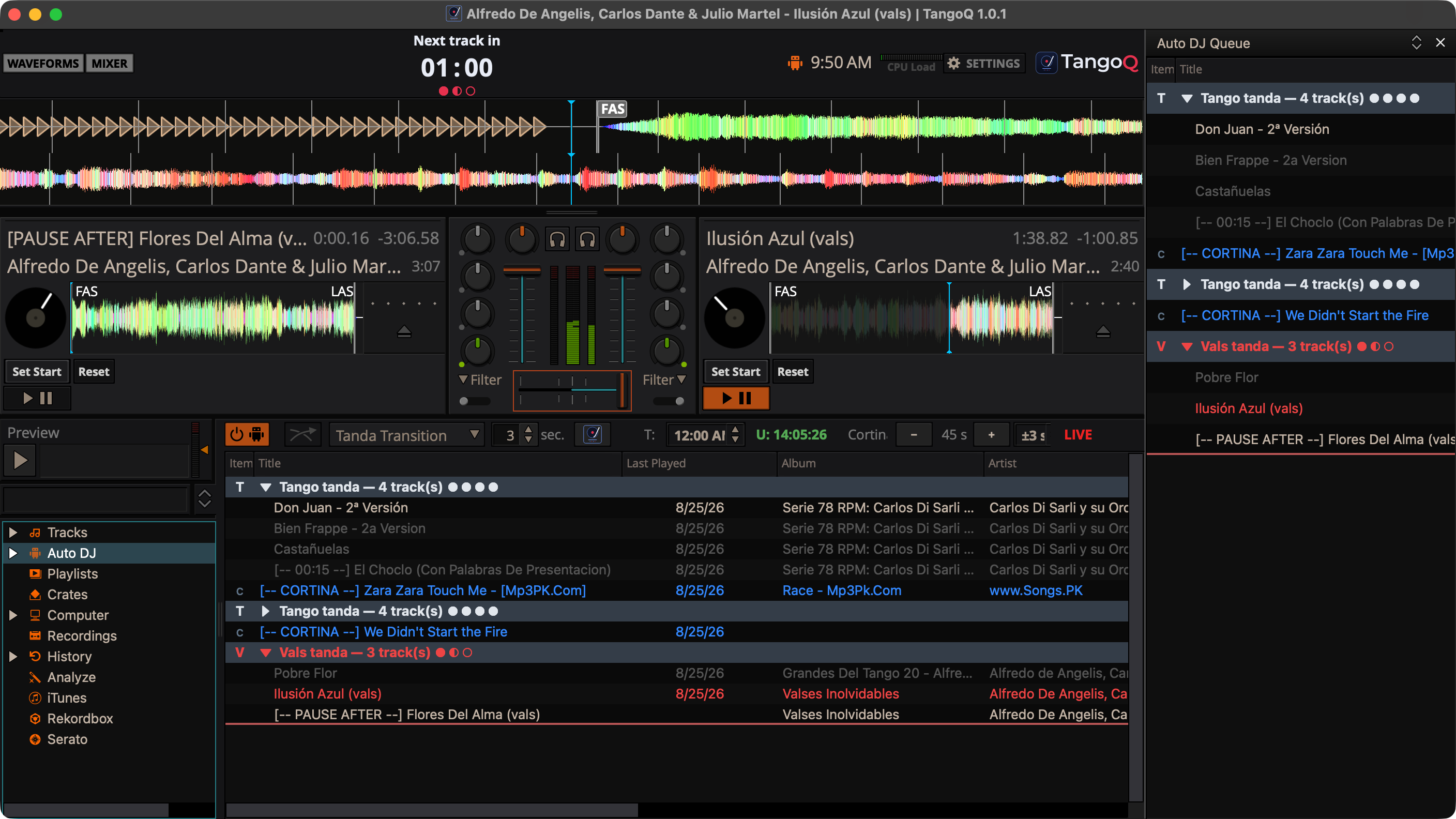
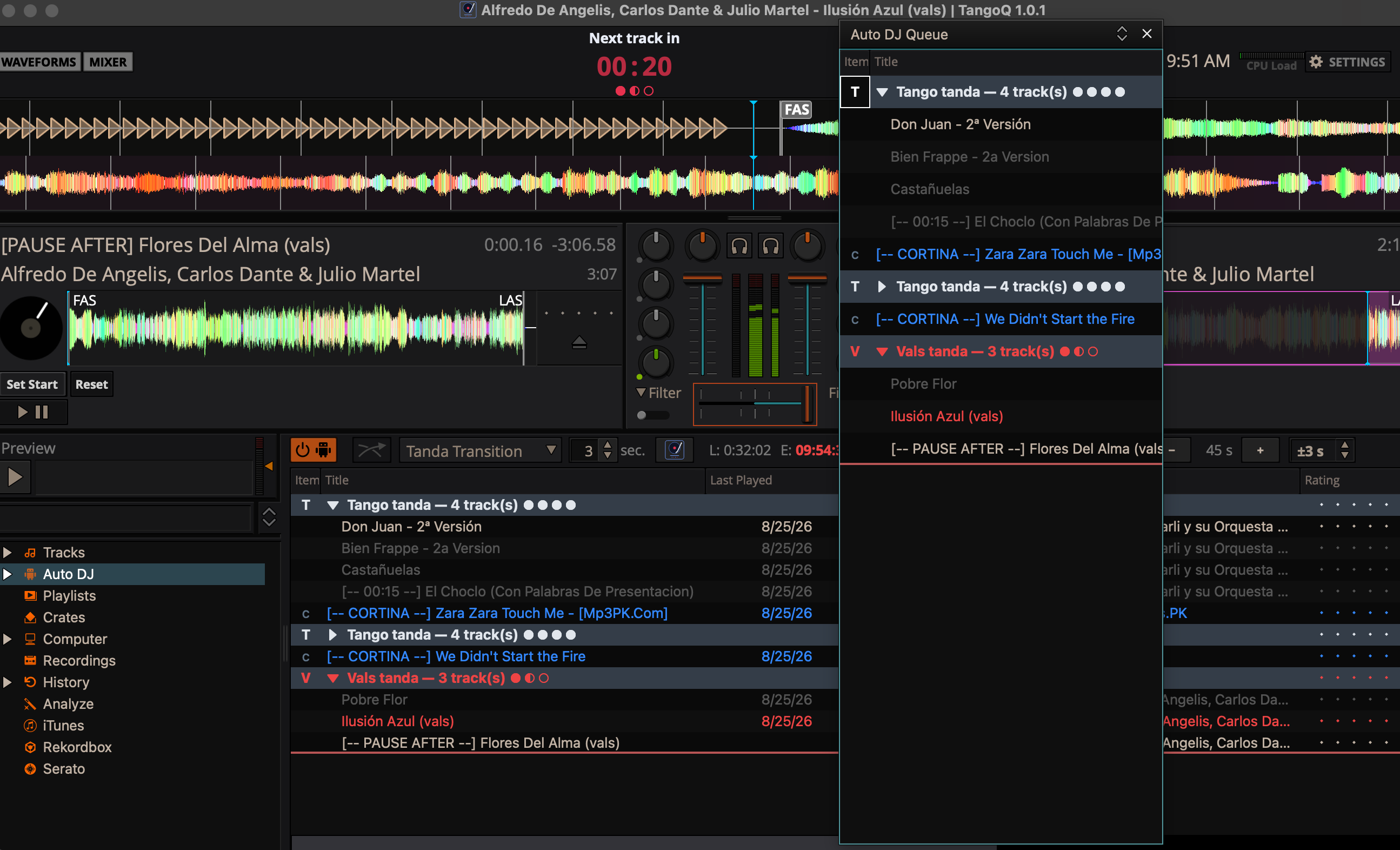
The Auto DJ Side Panel
A second, always-visible view of your Auto DJ queue, so the set stays in sight while you browse the library for the next tanda.
Open it from View → Auto DJ Side Panel. It's a live, second window onto the same queue, edit in either place and both stay in sync.
- Dock or float. Keep it docked to the side, or float it as its own window. Re-dock via the title-bar button, a double-click, or its right-click menu.
- Resizable. Drag it wider or narrower to fit your screen.
- It remembers. Its size, position and visibility persist across restarts, and it keeps the TangoQ theme whether docked or floating.
- Drag-and-drop. You can drop tracks straight into it.
Section 15
Settings Reference
Two places hold TangoQ's controls: the skin's Milonga Timing panel for what shows in the cockpit, and Preferences → Auto DJ for how transitions behave.
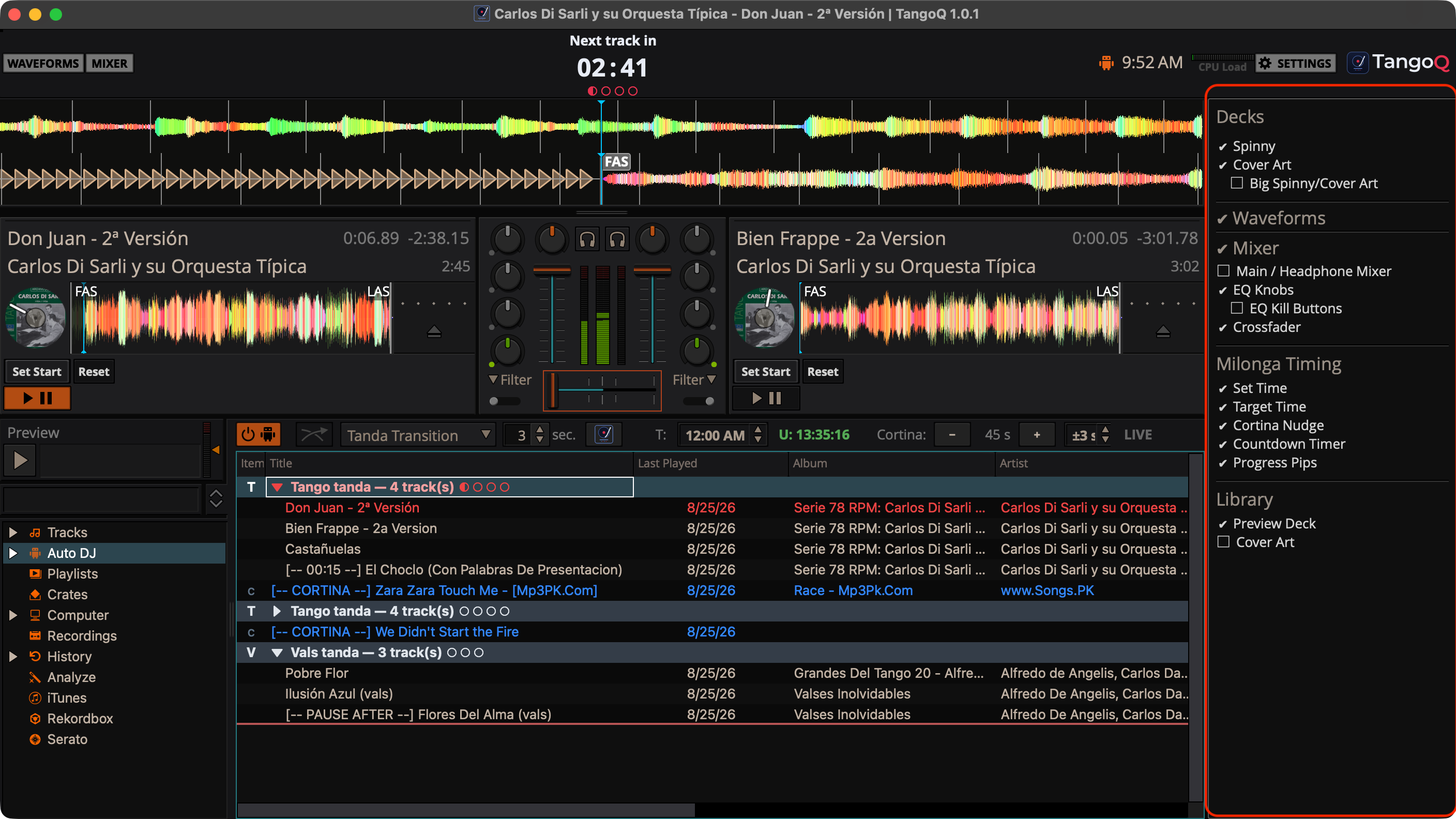
Milonga Timing panel (skin Settings)
Open the skin Settings panel to show or hide each cockpit element independently. The HUD keeps its reserved size when a readout is off, so the toolbar never reflows.
- Set Time: the set length / ends readouts.
- Target Time: the target end-time control and the over/under indicator.
- Cortina Nudge: the live Cortina: − / + control.
- Countdown Timer: the big HUD countdown.
- Progress Pips: the tanda progress pips.
Preferences → Auto DJ
- Default cortina length: the budget fed into set-timing.
- Cortina transition mode: hard cut or auto fade.
- Fade-in / fade-out: the cortina fade envelope, with a derived hold-time readout.
- Tanda gap: the gap between tracks within the set.
New installs start with cortina fade on (5 s in / 5 s out) and a 3 s tanda gap. If your Mixxx fade settings are still at the factory defaults, TangoQ applies its tango defaults; if you've customized them, they're left alone.
Section 16
Controls & Keys
TangoQ uses standard Mixxx keyboard shortcuts and controller mappings, the whole Mixxx control surface is unchanged.
The one tango-specific behaviour to know: while LIVE mode is on, the deck play/pause keys (D for the left deck, L for the right) are suppressed, so an accidental keypress can't stop a playing deck. Exit LIVE and they work normally again.
For the full Mixxx shortcut list, see the Mixxx keyboard reference, everything there applies here.
Section 17
Troubleshooting & FAQ
"The app can't be opened" on macOS
TangoQ is unsigned. Follow the first-launch steps in Section 03 (right-click → Open, or Open Anyway in Privacy & Security). This is only needed once.
The first import is taking a while
That's normal for a large library, see Section 04. The first scan analyzes every track and can take a few minutes, and it only happens once.
Tracks show up greyed as "already played" on a fresh launch
That means the previous session didn't shut down cleanly. Play-state is cleared only on a clean exit, so it deliberately survives a crash. Quit TangoQ normally and the flags clear on the next start.
My cortina tags / LIVE mode disappeared after restarting
By design. Cortina tags, session display names, and LIVE mode are session-only and reset at each launch, they never write to your track metadata.
Where does TangoQ keep its settings? How do I reset to a clean slate?
TangoQ stores its settings and library in its own folder, separate from Mixxx, the exact path is shown as the Destination in the first-run import dialog. To force a genuine fresh-install experience, quit TangoQ and remove its config file from that folder, then relaunch. Your music files are never touched.
Did TangoQ change my Mixxx setup?
No. The two apps keep entirely separate databases and settings. Importing from Mixxx only ever copies from it.
Section 18
Glossary & Credits
The vocabulary of the milonga, and the small print.
- Tanda
- A set of three or four tracks by one orchestra, played together as a unit for one turn on the floor.
- Cortina
- A short non-tango "curtain" between tandas that clears the floor and resets the mood.
- Milonga
- Both a social tango dance event, and a specific up-tempo tango rhythm (hence "milonga tanda").
- Vals
- Tango waltz, a tanda in 3/4 time (hence "vals tanda").
- Cursor queue
- TangoQ's Auto DJ queue: plays in order, keeps played tracks, stops at the end.
- FAS / LAS
- First / Last Audible Sound, the analyzed points where a track's real music begins and ends.
- LIVE mode
- A session state that arms accidental-stop guards and suppresses stray keystrokes during a real performance.
TangoQ is an independent fork of Mixxx (version 2.5.6), released under the GNU General Public License, version 2 - the same license as Mixxx, with all original Mixxx copyright and license notices kept intact. TangoQ © 2026 Seemanta Dutta; Mixxx © the Mixxx Development Team. The name “Mixxx” appears here only to credit the project TangoQ is built on.